Remotes
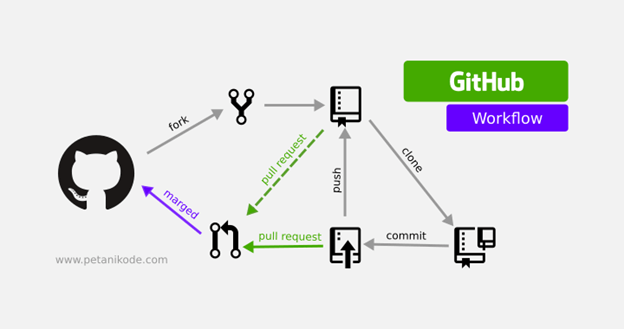
Seeing Your Remotes By running the git remote command, you can view the short names, such as “origin,” of all specified remote handles.
By using git remote -v, you can view all the remote URLs next to their corresponding short names.
Adding Remotes To create a new remote Git repository with a short name, use the following format:
git remote add shortname url
Fetching
Fetching entails pulling data that you don’t have from a remote project.
Here is the command format:
git fetch [remote-name]
*Now, you should also possess the references to all branches for that remote (more on branching later).
Cloned Repositories
For cloned repositories, use the command git fetch origin to pull down any new changes that were pushed to the server since you cloned or last fetched from it.
git fetch [remote-name]
Pushing
To push your changes “upstream” for sharing, you would use the following git push command format:
git push [remote-name][branch-name]
Example:
$ git push origin master
This command pushes committed changes from your local “master” branch upstream to the “origin” server.
Note: You can only successfully push changes upstream if you have write access for the server from which you cloned, and if someone else has not pushed changes upstream that you haven’t pulled yet. If a collaborator pushed changes upstream after you had cloned, your push will not be successful. You will have to pull new changes and merge them with your branch before you can successfully push your changes upstream.
Renaming/Removing Remotes
Rename
To rename a remote’s short name, use the git remote rename command.
Remove
To remove a remote for whatever reason (e.g., a contributor has left the team, the server has moved), simply use the git remote rm command
you can read more about remote